Complete Guide to Downloading, Installing and Setting Telegram to Chinese
From spotting the genuine installer to switching the interface to Simplified or Traditional Chinese, covering the full download and install flow for Android, iPhone, Windows, Mac and the web version.

What is the official Telegram download link, and how do I make sure it is genuine?
Your first choice is this site, telegrammessage.com, which offers the desktop app, the macOS app and installers for every platform.
On mobile, iPhone users search for Telegram in the App Store and Android users search for Telegram in Google Play or download the APK from this site. To confirm it is genuine, stick to our domain and the official app stores, and beware of phishing sites that imitate the real one with look-alike domains (swapped or missing letters, extra words, or obscure suffixes such as tgweb or telegrm.net). Telegram is open source with reproducible builds, so advanced users can compare it against the GitHub source code to verify the installer has not been tampered with. Never trust any so-called Chinese language pack or cracked version, as those often hide trojans.
Where is the safest place to download the Telegram Android APK?
The two safest channels for Android are: 1) search for Telegram in Google Play and install it directly; 2) download the official APK from this site, telegrammessage.com.
Use only these two sources. Never grab an APK from third-party download sites, forums, or links claiming to be a Chinese language pack or cracked version. There have already been phishing trojans disguised as Telegram Chinese language packs that, once run, inject themselves into processes, download remote-control tools, log keystrokes, and steal accounts and payment information. To tell real from fake, stick to the official download entry points above and watch for imitation sites with swapped, missing, or added letters. Telegram is open source with reproducible builds, so you can compare the installer against the GitHub source code to verify it.
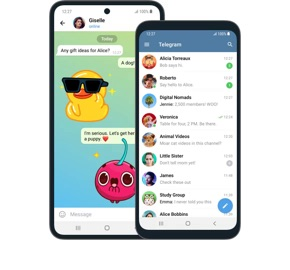
I cannot find Telegram in the App Store on my iPhone. How do I download it?
If it does not show up, it is usually because the App Store in your current region has removed it.
The fix: switch your Apple ID to a country or region store that does not block Telegram (such as the United States or Hong Kong), then search and download it (you will need to confirm you can actually switch to an account in that region). Once installed, open and use it as normal. Remember to download only from the official App Store. Never look for an iOS installer on third-party websites or links, and never touch any so-called Chinese version, because those files often hide phishing trojans that steal accounts and payment information. Only the official source is safe.
How do I download the Telegram desktop app? Is it available for both Windows and Mac?
Both are available. You can download the official desktop app from this site, telegrammessage.com. Windows supports both 32-bit and 64-bit (plus a no-install portable version).
Mac users can download from this site or the Mac App Store, and there is also a 64-bit Linux version (Flatpak/Snap). This site lists a single entry point for every platform. These are all open source (GPL v3), reproducible-build official versions. Download only from these legitimate sources, and do not trust knock-off sites or third-party Chinese language packs. After installing, open the top-left menu > Settings > Language to choose Chinese directly (Simplified and Traditional Chinese have been built in officially since April 2026, so update to the latest version first).
After downloading Telegram, how do I set the interface to Chinese?
Since April 17, 2026, Telegram has officially built in Simplified and Traditional Chinese, so you no longer need a third-party language pack.
First update the app to the latest version, then: on mobile, go to Settings > Language and choose Simplified Chinese or Traditional Chinese; on the desktop/Mac app, click the top-left menu > Settings > Language and choose Simplified or Traditional Chinese, and the app will restart automatically. The whole process requires no links at all. Switching the language does not affect your chat history or account security. As a reminder, do not go looking for Chinese language packs online, as those are a common entry point for phishing trojans, and the built-in official option is more than enough.
Where do I add a Telegram Chinese language pack, and is it safe?
You basically no longer need to add one. Since April 2026 Telegram has officially built in Simplified and Traditional Chinese, so after updating the app to the latest version, just go to Settings > Language and choose Chinese, with no language-pack link required.
In the early days you had to tap a community language-pack link (t.me/setlanguage/...) to localize the app, but those were unofficial user-translated packs, and the web is flooded with Silver Fox phishing trojans disguised as Chinese language packs that, once run, inject themselves into processes, enable remote control, log keystrokes, and steal accounts and payment information. The safe approach: use the built-in official Chinese, and stop installing third-party language packs or localized clients of unknown origin.
Will downloading a Telegram APK directly on Android infect my phone, and how do I judge if it is safe?
An APK downloaded from a legitimate channel is safe: stick to the download entry on this site, telegrammessage.com, or use Google Play directly.
Telegram is open source with reproducible builds, and the official installer can be compared against the GitHub source code to verify it has not been tampered with, which is the solid way to confirm it is genuine. The risk lies with APKs from third-party sites. There have been Silver Fox phishing trojans disguised as a Telegram Chinese language pack or Chinese version that, once run, inject themselves into processes, download remote-control tools, log keystrokes, and steal accounts and payment information, and imitation sites often use look-alike domains with swapped or missing letters and obscure suffixes. Bottom line: download only from this site or Google Play, and avoid APKs and language packs of unknown origin.
Is there an official Simplified Chinese version of Telegram, or do I still need to install a language pack myself?
There is an official Simplified Chinese now, so you no longer need to install a language pack yourself. Since April 17, 2026, Telegram has built in a Simplified and Traditional Chinese interface.
After updating the app to the latest version, on mobile go to Settings > Language and choose Simplified Chinese, and on the desktop/Mac app click the menu > Settings > Language and choose Simplified Chinese, with no links or third-party packs needed at any point. In the early days you did indeed have to tap a community language-pack link to localize the app, but those were unofficial translations, and the Chinese language packs online often hide trojans. Now that the official build covers it, there is no need to install a language pack of unknown origin.
How do I verify that the Telegram I downloaded is the genuine official version and not phishing software?
A few solid moves: 1) Download only from legitimate sources: the App Store, Google Play, or this site, telegrammessage.com (the desktop app and Mac app are both available here).
Do not download from an unfamiliar download site in your search results. 2) Check the domain carefully, since imitation sites often disguise themselves with swapped letters, missing letters, repeated letters, obscure suffixes, or extra words (such as tgweb or telegrm), so compare our domain letter by letter. 3) Telegram is open source with reproducible builds, so technically you can compare the installer against the official GitHub source code to verify it has not been tampered with. 4) Never install any third-party pack called a Chinese language pack or Chinese-version client, as that is a hotbed for Silver Fox trojans.
What is the difference between Telegram X and regular Telegram, and which one should I download?
Unfortunately, the reliable sources provided do not specifically compare the feature differences between Telegram X and regular Telegram, so this part needs hands-on confirmation.
The general understanding is: both are official products that share the same account system, and Telegram X leans toward a lighter, more experimental experience. For most people, and especially when setting it up for older relatives, downloading regular Telegram is the safer bet, as it is more stable and better documented. Whichever you choose, download only from legitimate channels (App Store, Google Play, or this site, telegrammessage.com) and avoid knock-off sites, so you do not install a counterfeit phishing app.
Can a HarmonyOS phone install Telegram, and where do I download it?
Unfortunately, the reliable sources provided do not specifically cover the installation situation for HarmonyOS, so this part needs hands-on confirmation.
The general approach: if your HarmonyOS phone has Google services or a usable store, you can install it through Google Play the same way as on Android; otherwise, download the official APK from this site, telegrammessage.com, enable the permission to install unknown apps, and then install it (whether pure HarmonyOS NEXT is compatible with Android APKs needs hands-on confirmation). Be sure to stick to this site only, and do not download the APK from knock-off sites to avoid phishing trojans.
How do I open Telegram Web without downloading anything?
Telegram has an official web version, which you can reach from the per-platform entry on this site, telegrammessage.com, where the Web version is among the listed platforms and opens directly in your browser with no install needed.
On first use you still need to log in with a real phone number in international format (for example, Taiwan +886, dropping the leading 0 so it starts with 9). Note that the web version only handles the connection for that one browser tab, so if your location requires a proxy to reach Telegram, make sure the browser itself is already routed through a proxy or a VPN tool.
Sources: Telegram Official App List · Telegram Official FAQ · Wikipedia: Telegram